BigSpy Ad Library helps you search global ad creatives and narrow the results by industry, network, country or region, creative format, engagement, and other criteria.
This guide covers each search mode, filter, sorting option, and deduplication method so you can find competitor ads, high-performing creatives, and fresh inspiration more efficiently.
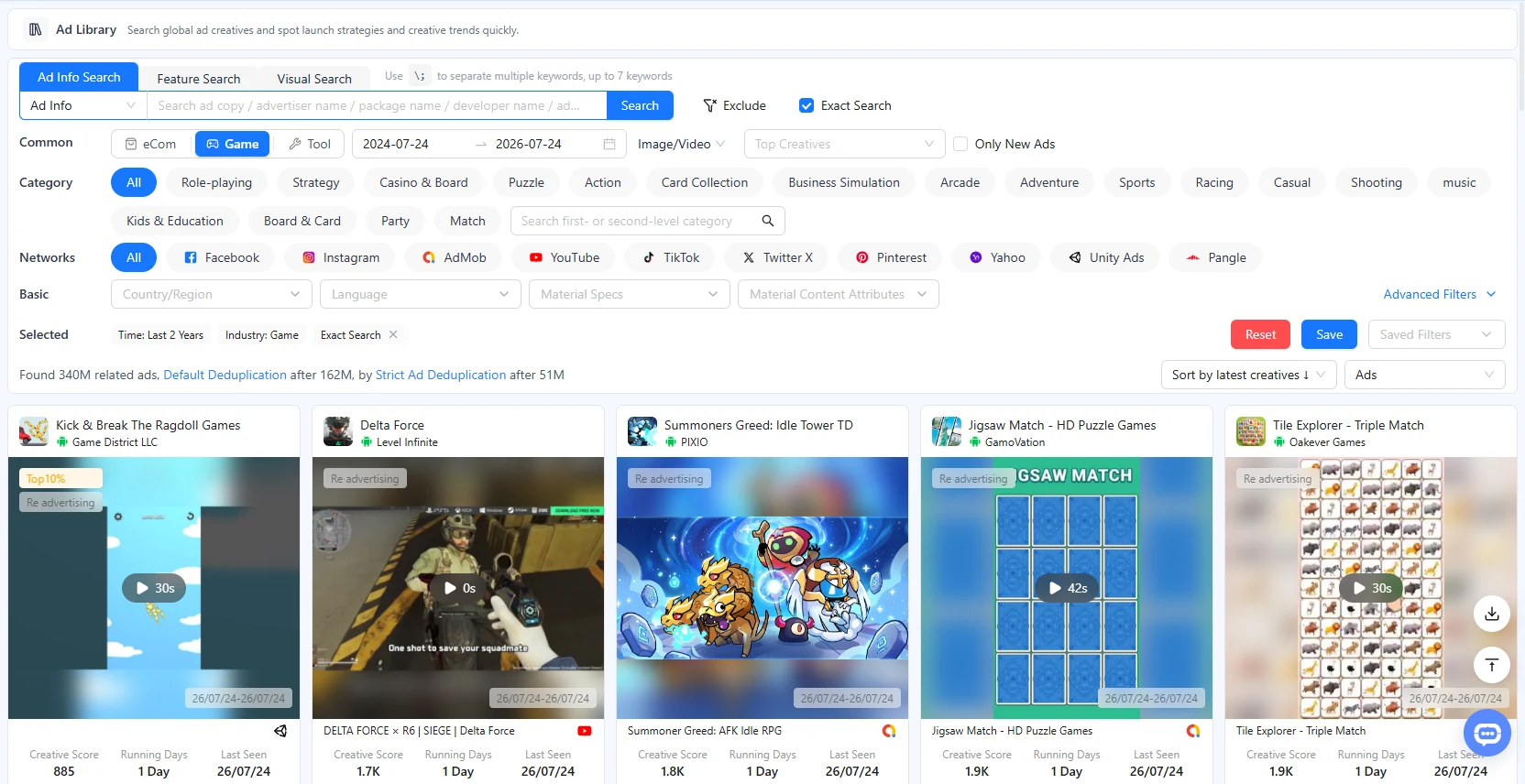
1. Choose an Industry

The Ad Library supports three industries:
- E-commerce: Find ads for products, stores, independent websites, and e-commerce platforms.
- Game: Find ads by mobile or PC title, gameplay, theme, or IP.
- Tool: Find ads for utility apps, dramas, AI apps, and other non-game apps.
Changing the industry also changes the available categories, landing page types, and some advanced filters.
If your current plan does not include the target industry, you may still enter trial mode and view limited data. You can use the full search and filtering capabilities only after making the target industry your real industry.
2. Search for Ads
The Ad Library provides three search modes: Ad Info Search, Feature Search, and Visual Search.
2.1 Ad Info Search

Enter keywords to search text and business information associated with an ad.
Use \; to separate multiple keywords. You can search for up to seven keywords at once.
Keyword Exclude removes ads containing specified words. For example, search for “weight loss” and exclude “clothing” to reduce irrelevant results.
Exact Search preserves keyword order for higher relevance but fewer results. When it is off, BigSpy may match only some keywords and does not preserve their input order, which broadens the results.
2.2 Feature Search

Describe the visual content, people, scene, action, or style you want to find. BigSpy matches images and videos with similar content features.
Examples:
- A woman demonstrating a cleaning product in a kitchen.
- Mobile game combat with a character upgrade screen.
- A fast-paced unboxing video with a bright background.
More specific descriptions usually produce more accurate results.
2.3 Visual Search

Upload an image or video, or paste an image or video URL, to find visually similar ad creatives. You can use either a local file or a URL.
- Images must be no larger than 3MB.
- Videos must be no larger than 10MB.
- Local upload and URL search cannot be used at the same time.
Visual Search is useful for finding reused assets, similar compositions, comparable products, or related video styles.
3. Common Filters
3.1 Time and Only New Ads

Time filters ads observed or recorded by BigSpy during the selected period. You can choose the last 7, 30, 90, or 180 days, the last one or two years, or a custom range.
Only New Ads shows ads that started running during the selected time range.
The difference between them:
- Time requires the ad to have been active during the selected period.
- Only New Ads additionally requires the ad to have started running during the selected period.
To explore recent market trends, select the last 7 or 30 days and enable Only New Ads.
3.2 Creative Format
Filter by the file type and display format of the ad creative:
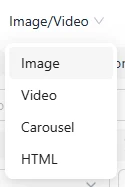
| Format | Meaning |
|---|---|
| Image | A single-image ad. |
| Video | A video ad. |
| Carousel | An ad containing multiple images or creative cards. |
| HTML | An ad displayed with HTML content. |
Playable ads are available on the separate Playable Ads page and are not included in the standard Creative Format filter.
3.3 Top Creatives
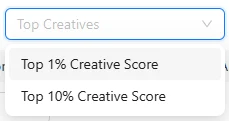
Top Creatives shows popular creatives ranked in the top 1% or top 10% by Creative Score and is available only for Game and Tool.
BigSpy ranks ads by Creative Score. Top 10% means the ad ranks near the top among ads in the same category. Creative Score is BigSpy’s composite assessment of an ad.
3.4 Industry Tags
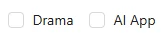
Tool provides:
- Drama: Shows ads related to drama products or content.
- AI App: Shows ads related to AI applications.
E-commerce provides:
- Search Arbitrage: Shows creatives related to search-arbitrage websites.
4. Category and Networks
4.1 Category

Game and Tool: Filter apps by first- or second-level category.
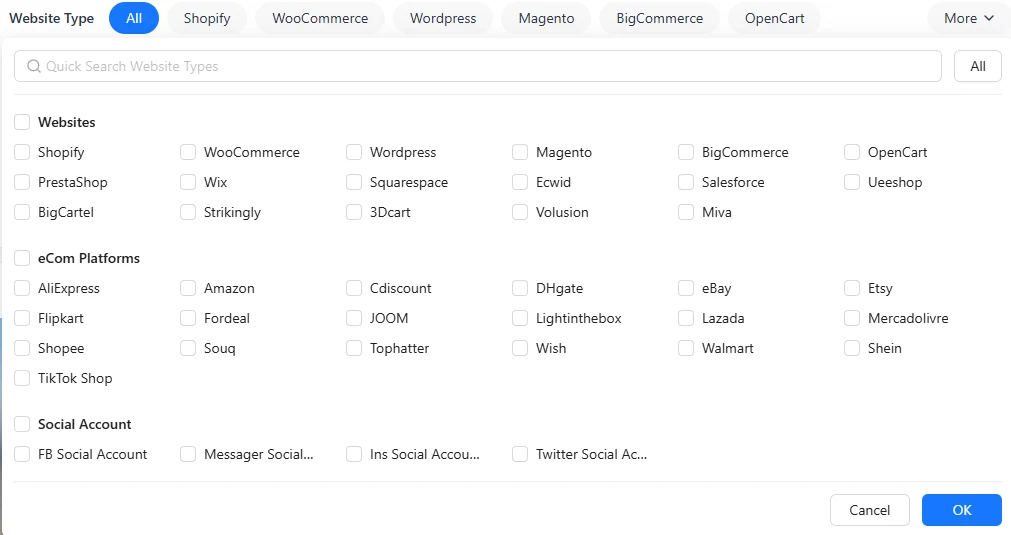
E-commerce uses Website Type instead of the standard Category filter:
- Websites: Independent sites built with Shopify, WooCommerce, WordPress, and similar services.
- eCom Platforms: Marketplaces such as Amazon, Shopee, Lazada, and TikTok Shop.
- Social Account: Destinations on Facebook, Instagram, or other social platforms.
4.2 Networks

Filter by the platform where an ad was delivered, for example:
- AdMob
- YouTube
- TikTok
- X
- Yahoo
- Unity Ads
- Pangle
Available networks depend on your plan. Networks not included in the plan remain visible but cannot be selected.
5. Basic Filters
5.1 Country/Region
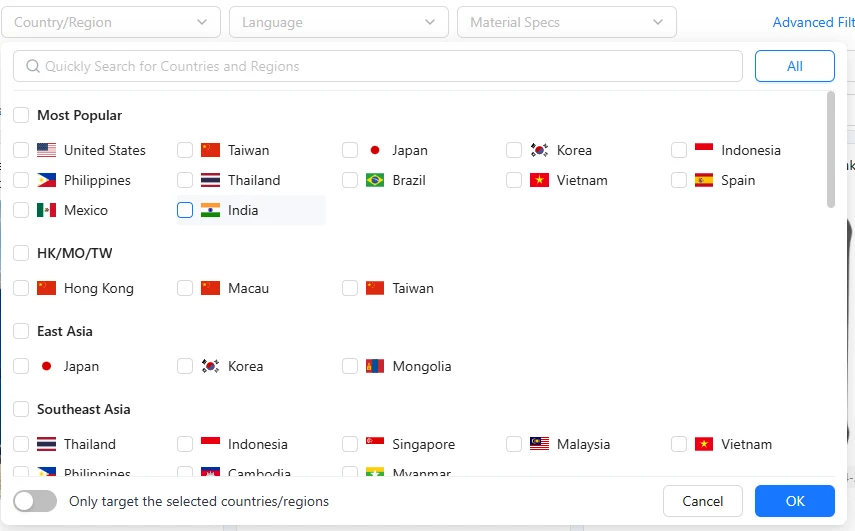
Country/Region filters ads observed in the selected locations; it does not indicate where the advertiser is registered.
Only target the selected countries/regions keeps ads whose delivery coverage exactly matches the selected locations.
5.2 Language
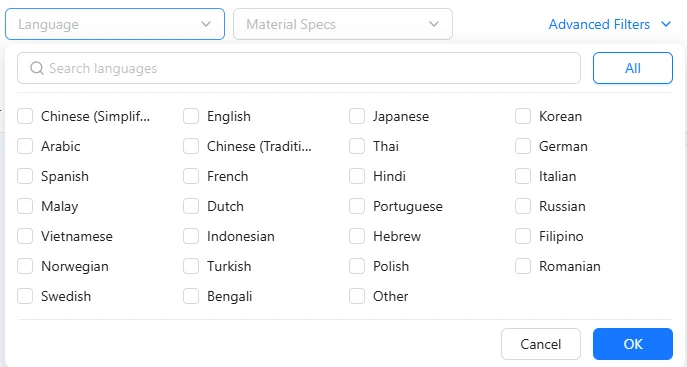
Language filters by the language detected in the ad.
It refers to the language used in the ad text, not the advertiser’s country or the user’s device language.
5.3 Material Specs
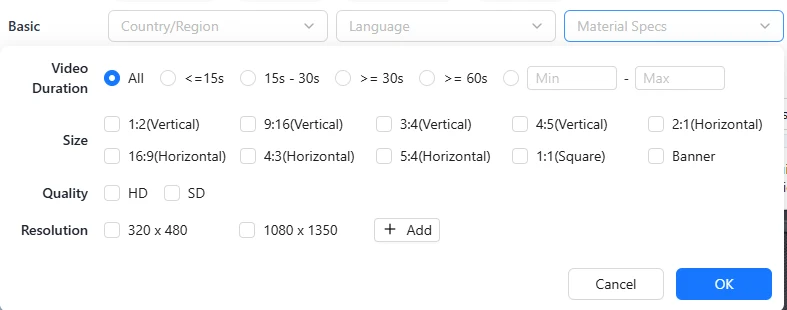
Filter by the visual specifications of the creative:
| Filter | Meaning |
|---|---|
| Video Duration | Filters by video length in seconds. |
| Size | Filters by portrait, landscape, square, or banner ratio. |
| Quality | Filters by HD or SD quality. |
| Resolution | Filters by creative width and height; custom resolutions can also be added. |
5.4 Material Content Attributes
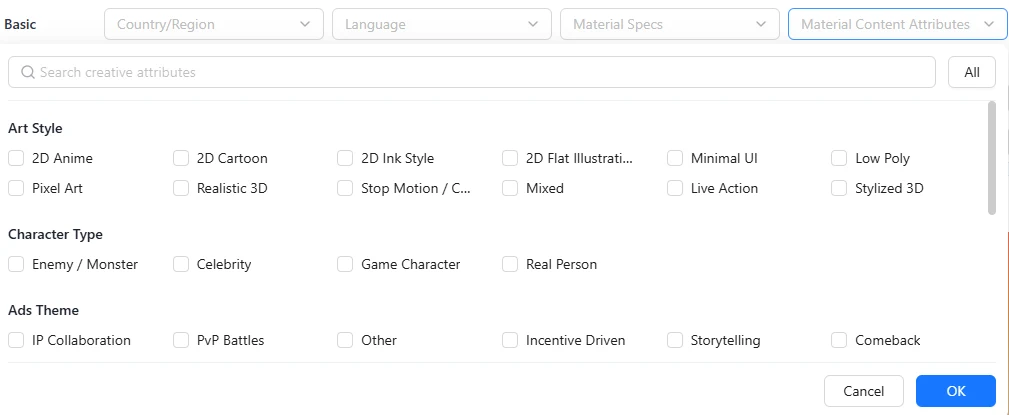
Material Content Attributes filters by visual content, presentation style, or creative elements detected by BigSpy. It is available only for Game.
It describes what appears in the creative rather than the game’s product category, gameplay, or theme.
6. Advanced Filters
Open More Filters to view advertiser, delivery, audience, and other criteria.
6.1 Advertiser Filters

| Filter | Meaning |
|---|---|
| OS | Filters by the promoted product’s supported platforms and is available only for Game and Tool. Game includes iOS, Android, PC, and game consoles; Tool includes iOS and Android. |
| Core Track/Gameplay/Theme/IP | Filters by a game’s core track, gameplay, theme, or related IP; available for Game. |
| Pre-registration | Separates pre-registration ads, pre-registration ads with a Landing Page Snapshot, and non-pre-registration ads; available for Game. |
6.2 Delivery Filters

| Filter | Meaning |
|---|---|
| Engagement | Filters by likes, comments, and shares. |
| Landing Page Type | Filters by the destination users reach after selecting the ad. |
| Creative Format | Separates Original Ads from Dynamic ads. |
| Ad Placements | Filters by placement within AdMob or YouTube. |
| Re-delivery Ads | Separates First-Time Creatives from Reused Creatives. |
Original Ads come from original feed posts and usually include visible engagement data such as Likes, Comments, and Shares.
Dynamic ads are creatives marked as dynamic by the advertising platform. The platform may show different products or creative combinations to different audiences.
First-Time Creatives are being used by the advertiser for the first time.
Reused Creatives have been delivered more than once. Continued reuse can signal sustained advertiser interest, but it does not directly prove conversion performance.
Ad Placements is available only when every selected network is AdMob or YouTube.
Depending on the network, supported placements include interstitial, rewarded, banner, native, display, and short-video ads.
6.3 Landing Page Type
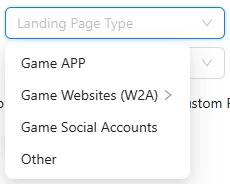
E-commerce:
- Purchase
- Social Communication
Game:
- Game APP
- Game Websites (W2A)
- Game Social Accounts
- Other
Tool:
- Tool APP
- Tool Websites (W2A)
- Tool Social Account
- Drama Website
- Other
W2A means users first reach a website after selecting an ad, and that page then guides them to install an app or PWA.
For Tool, Drama Website is available only when the Drama filter is selected.
6.4 Audience

FB Audience filters by Audience Gender and Audience Age.
It is available only when Facebook or Instagram is selected and applies only to creatives delivered in EU regions.
CTA filters by the ad’s call to action or marketing objective, such as conversion, traffic, lead generation, engagement, app download, or shopping.
6.5 Other Filters


| Filter | Meaning |
|---|---|
| Contains Page Info | Shows ads associated with an active delivery page or account; available for Game and Tool. |
| Violation Ads | Shows ads identified by the system as policy violations. |
| End Card | Shows video ads that include an end card; available for Game and Tool. |
| Custom Page | Shows ads that use a custom app-store page; available for Game and Tool. |
| COD | Shows Cash on Delivery ads; available for E-commerce. |
Contains Page Info does not currently support TikTok. It refers to a delivery account on AdMob and usually a page name on other supported networks.
7. Review and Manage Selected Filters

Active search criteria and filters appear below the filter panel.
- Select any removable item to clear only that filter.
- Industry and Time define the current query context and cannot be removed individually from Selected.
- Select Clear to restore the defaults for the current industry.
- Select Save to store the current filter combination.
- Open Saved Filters to reapply a previously saved combination.
Saved Filters include the current industry. Saved filters for Game, Tool, and E-commerce are managed separately.
8. Sort By
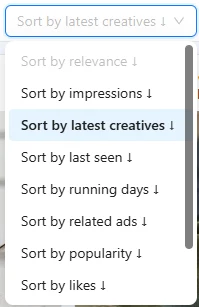
| Sort By | How Results Are Ordered |
|---|---|
| Relevance | Prioritizes stronger keyword matches; available only after entering keywords in Ad Info Search. |
| Similarity | Prioritizes ads most similar to the Feature Search description or Visual Search input; available only when using Feature Search or Visual Search. |
| Impressions | Prioritizes ads with higher estimated impressions. |
| Latest Creatives | Prioritizes creatives first seen by BigSpy more recently. |
| Last Seen | Prioritizes ads monitored by BigSpy more recently. |
| Running Days | Prioritizes ads with a longer delivery duration. |
| Related Ads | Prioritizes creatives associated with more ads. |
| Popularity | Prioritizes ads with higher overall popularity. |
| Likes / Comments / Shares | Prioritizes ads with more of the selected engagement metric. |
Last Seen helps you judge whether an ad is still active. Running Days helps you find creatives used consistently over time.
9. Choose a Dedup Option

| Dedup | How It Works |
|---|---|
| Ads | Merges ads with the same creative, network, advertiser, and device system, while excluding low-quality results. |
| Creatives | Merges duplicate creatives based on image or video similarity. |
| Advertisers | Keeps one ad per advertiser; the current sorting option determines which ad is retained. |
Choose Advertisers to compare different advertisers. Choose Creatives to discover a wider variety of creative assets.
10. Common Filter Combinations
10.1 Find Recent Trends
Select the last 7 or 30 days, enable Only New Ads, and sort by Latest Creatives.
10.2 Find Popular Creatives
For Game or Tool, select Top Creatives and sort by Impressions, Popularity, or an engagement metric.
10.3 Research a Competitor
In Ad Info Search, select Advertiser and enter a brand name, app name, package name, or developer. Then combine it with Networks, Country/Region, and Time.
10.4 Research E-commerce Products
Combine Country/Region, Website Type, and COD, then sort by Impressions or an engagement metric.
10.5 Find Similar Creatives
Use Feature Search to describe the target visual, or upload a reference image or video with Visual Search. Then sort by Similarity.
11. View Creative Details
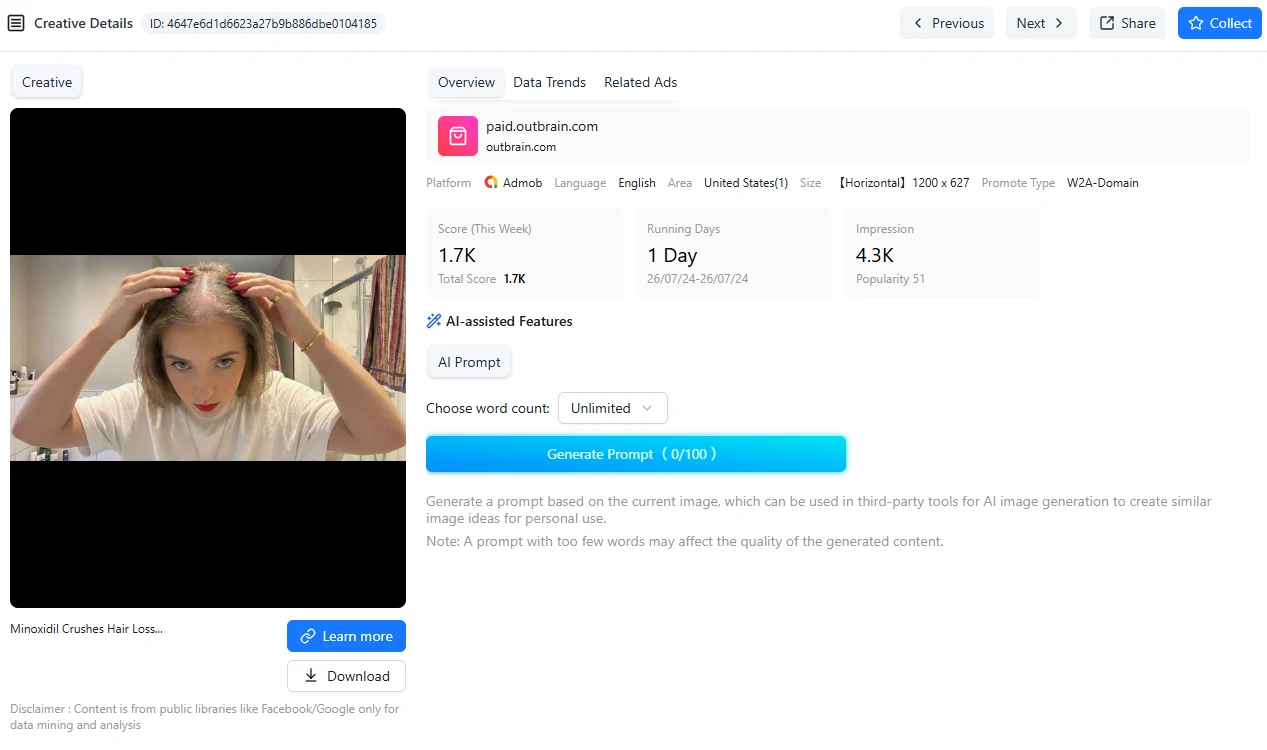
Select an ad creative to open Creative Details and review its Ad Info, Data Trends, Related Ads, audience data, and creative content.
Ad cards may also provide Collect, Download, Share, and Visual Search actions. Select the Visual Search icon to find ads similar to the current image or video.