
Save ad creatives to your BigSpy Swipe File with one click.
The BigSpy Chrome extension helps marketers, advertisers, and creative teams collect competitor ads, trending creatives, and social media inspiration from Meta Ad Library, TikTok Organic, TikTok Creative Center, and TikTok Ad Library. Saved creatives are stored in your BigSpy cloud library, where you can organize them into boards for later review, analysis, and creative planning.
1. Install the BigSpy Chrome Extension
Chrome Web Store: https://chromewebstore.google.com/detail/clgkendiibneneecamnkpcpagomhofah?utm_source=item-share-cb
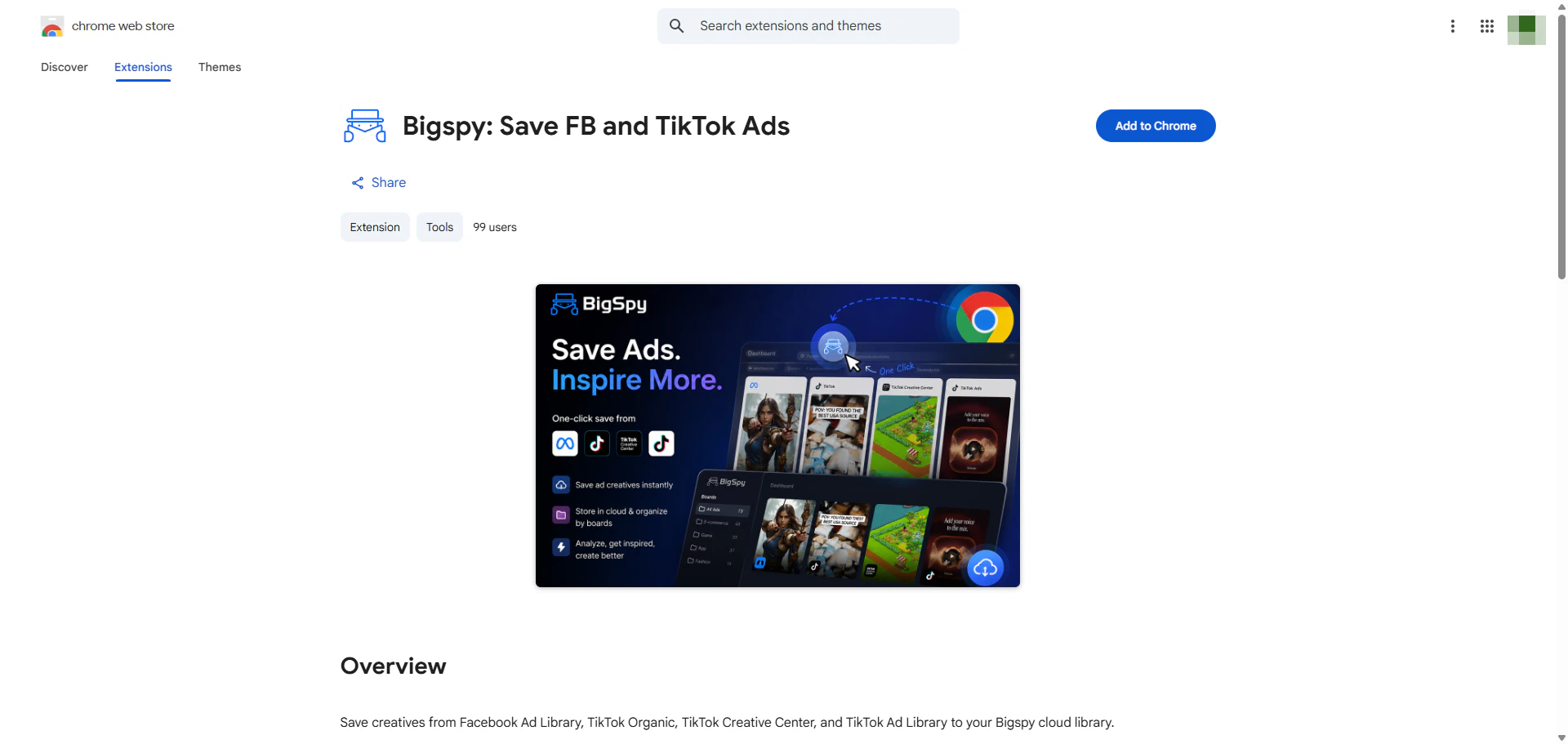
Open the link above and add the BigSpy extension to Chrome.
After installation, select the Extensions icon in the top-right corner of Chrome, then open the BigSpy extension.
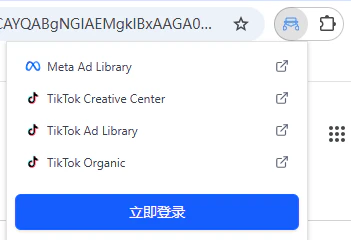
2. Sign In and Save an Ad
The extension provides shortcuts to Meta Ad Library, TikTok Organic, TikTok Creative Center, and TikTok Ad Library. The steps below use Meta Ad Library as an example.
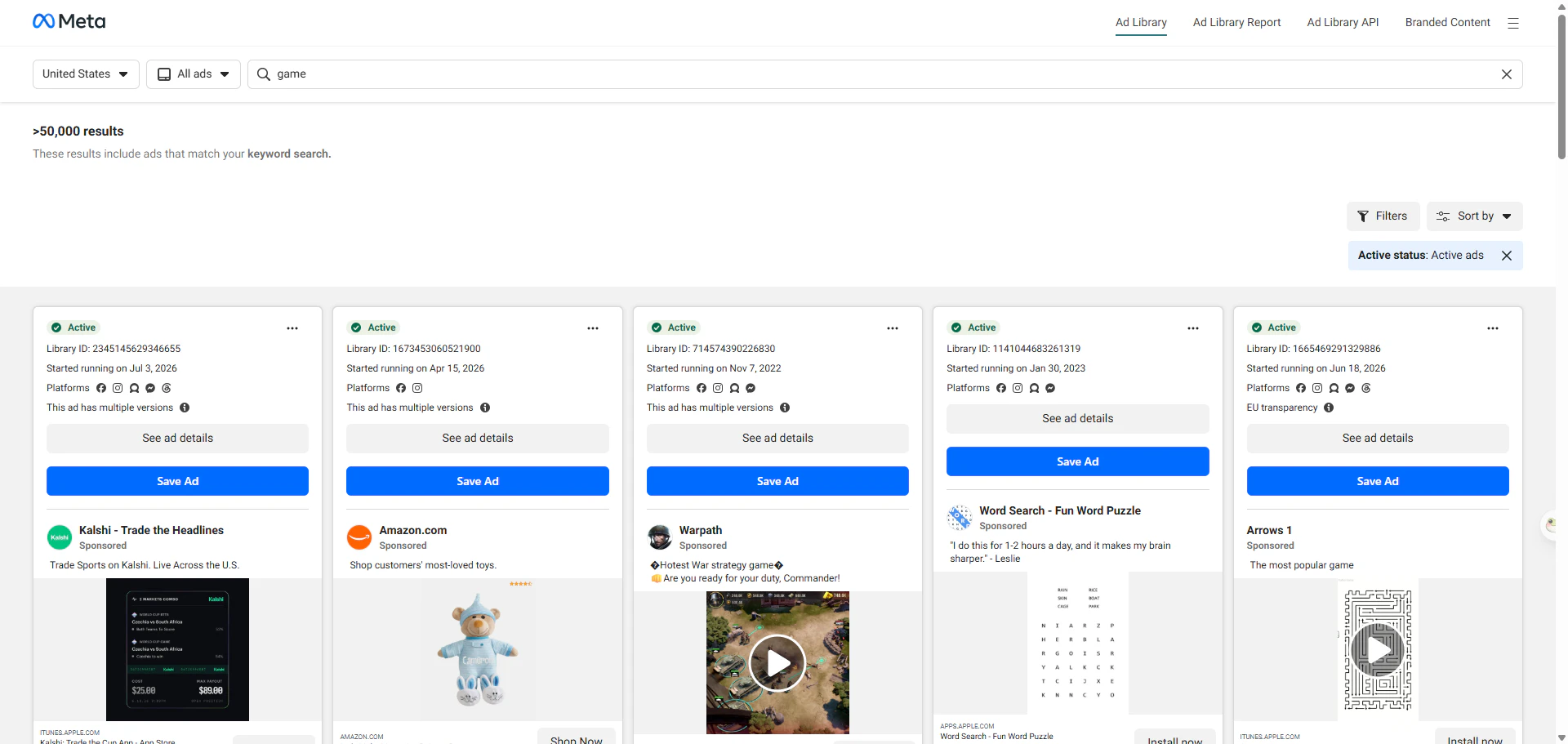
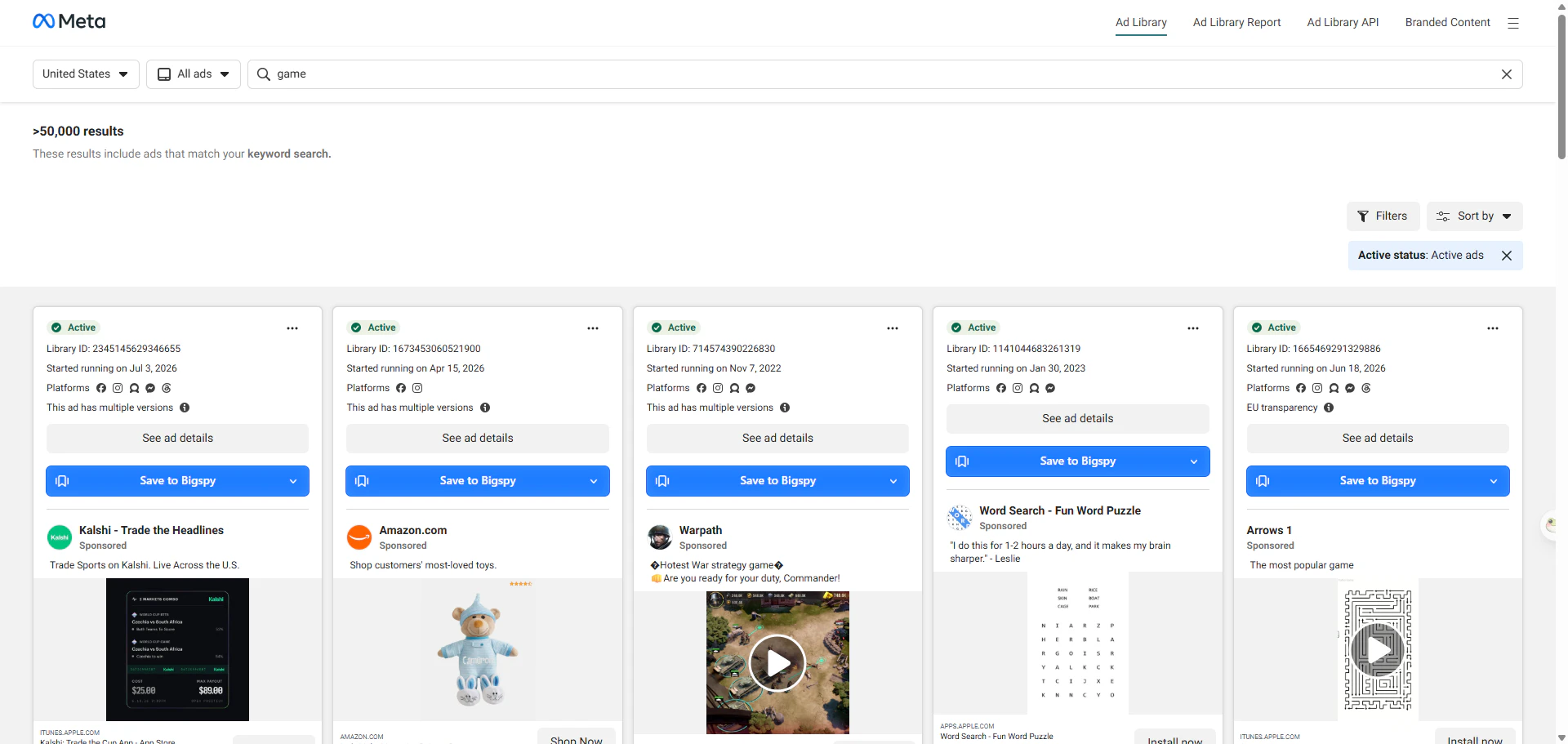
Open Meta Ad Library. A Save Ad button appears on each ad; after you sign in, it changes to Save to Bigspy. If you see this button, the extension is working correctly.
The first time you save an ad, select Save Ad and sign in with your BigSpy account in the pop-up window.
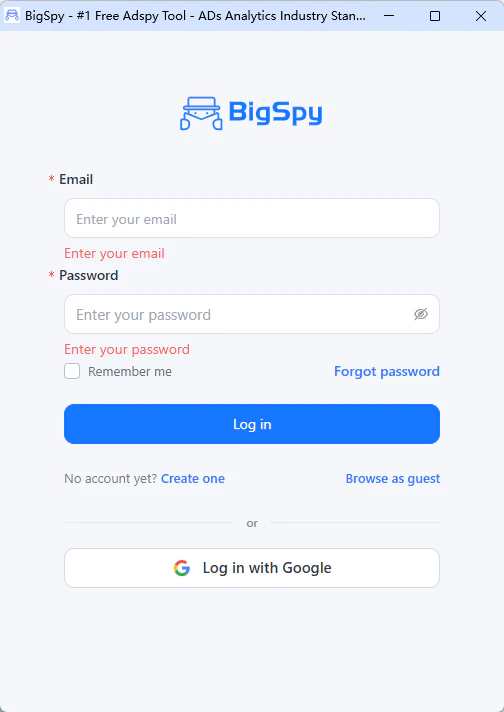
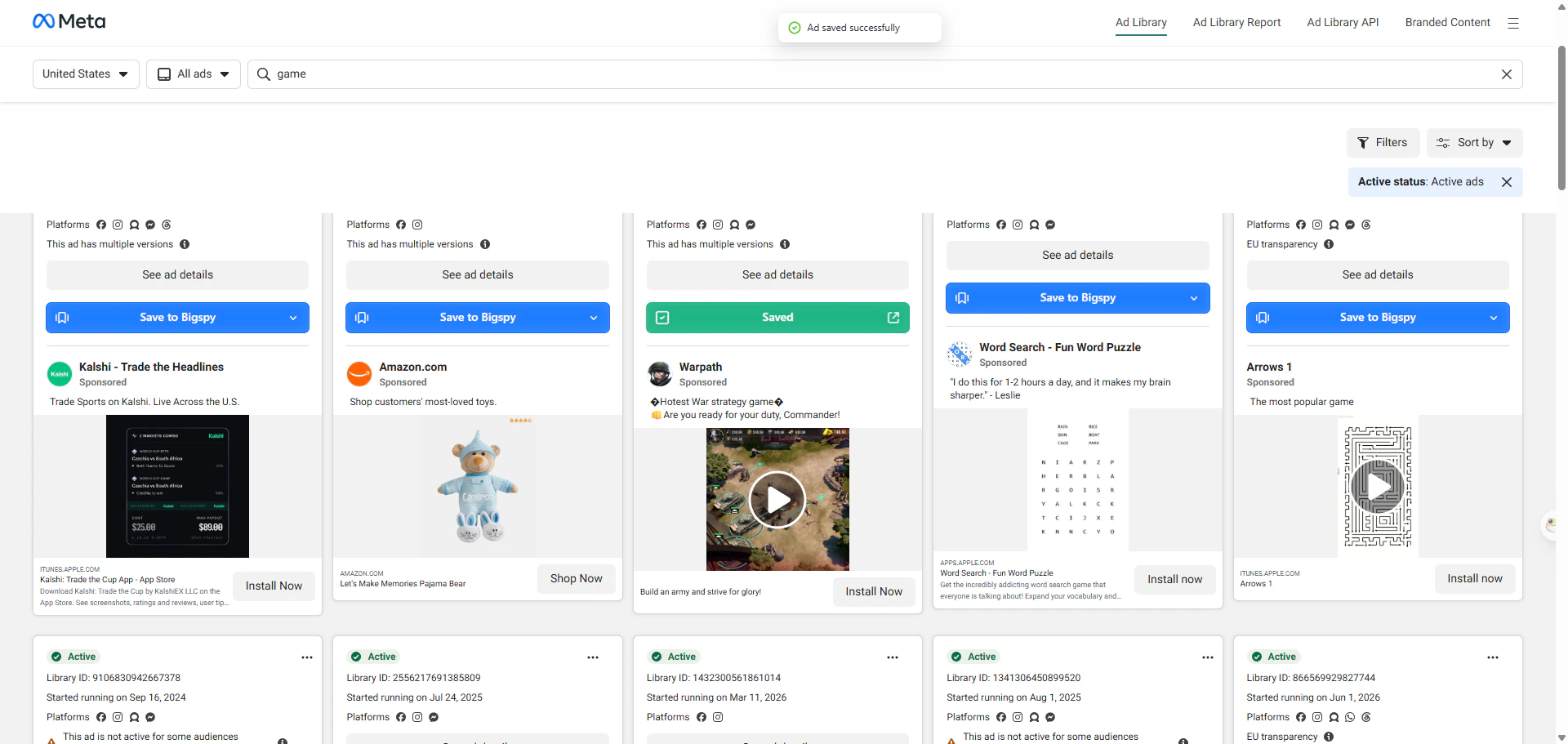
After signing in, select Save to Bigspy on any ad to save it to your Swipe File.
A confirmation message appears when the ad has been saved.
3. Save an Ad to a Specific Board
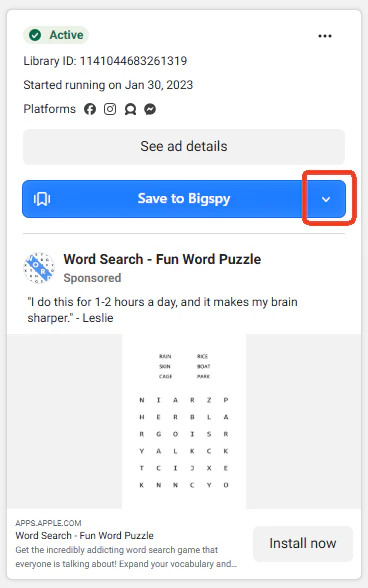
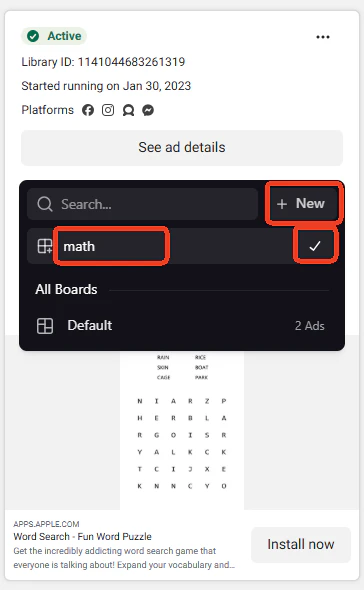
To choose a board while saving an ad, select the down arrow next to Save to Bigspy.
In the board picker, select the board where you want to save the ad.
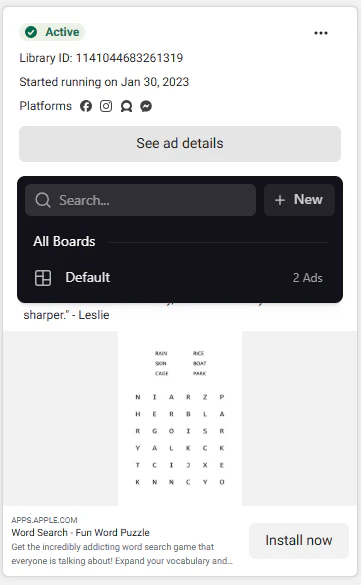
You can also create a new board directly from the board picker.
4. Manage Your Swipe File
4.1 Boards and Saved Creatives
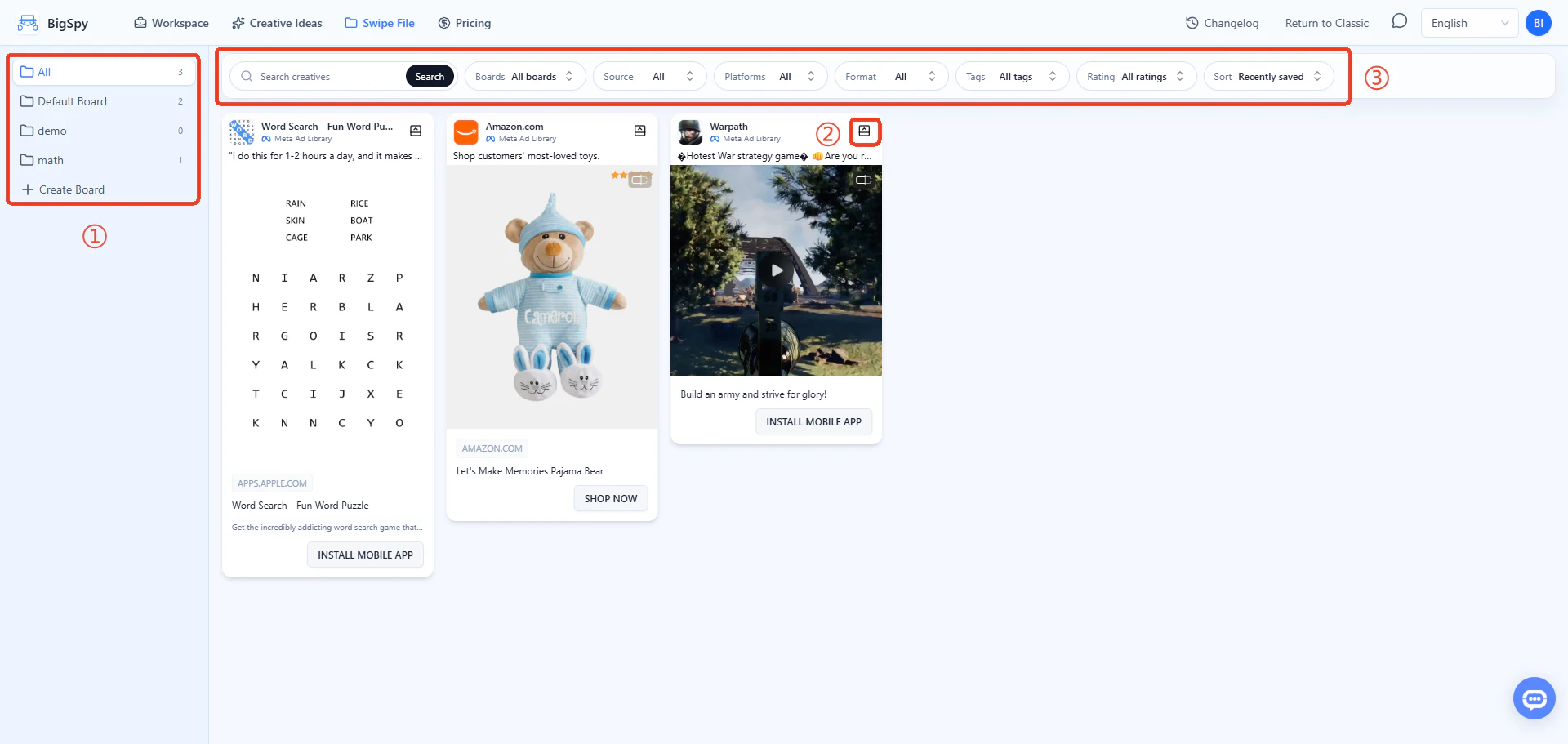
- 1
Board list: View all boards and the number of saved creatives in each board.
Select Create Board to create a new board.
You can delete any board except Default Board.
- 2
Creative details: Select this icon to open the details page for the creative.
- 3
Search, filters, and sorting: Use the following options to find saved creatives.
- Ad copy:
- Search by text in the ad.
- Board:
- Show creatives saved to a selected board.
- Channel:
- Filter Meta ads by the platforms where they were delivered. An advertiser may run the same ad across multiple Meta platforms.
- Ad format:
- Filter by image, video, carousel, or dynamic ad.
- Tag:
- Filter by tags you added.
- Rating:
- Filter by the rating you assigned.
- Sort:
- Sort by saved date, updated date, or rating.
5. View Creative Details
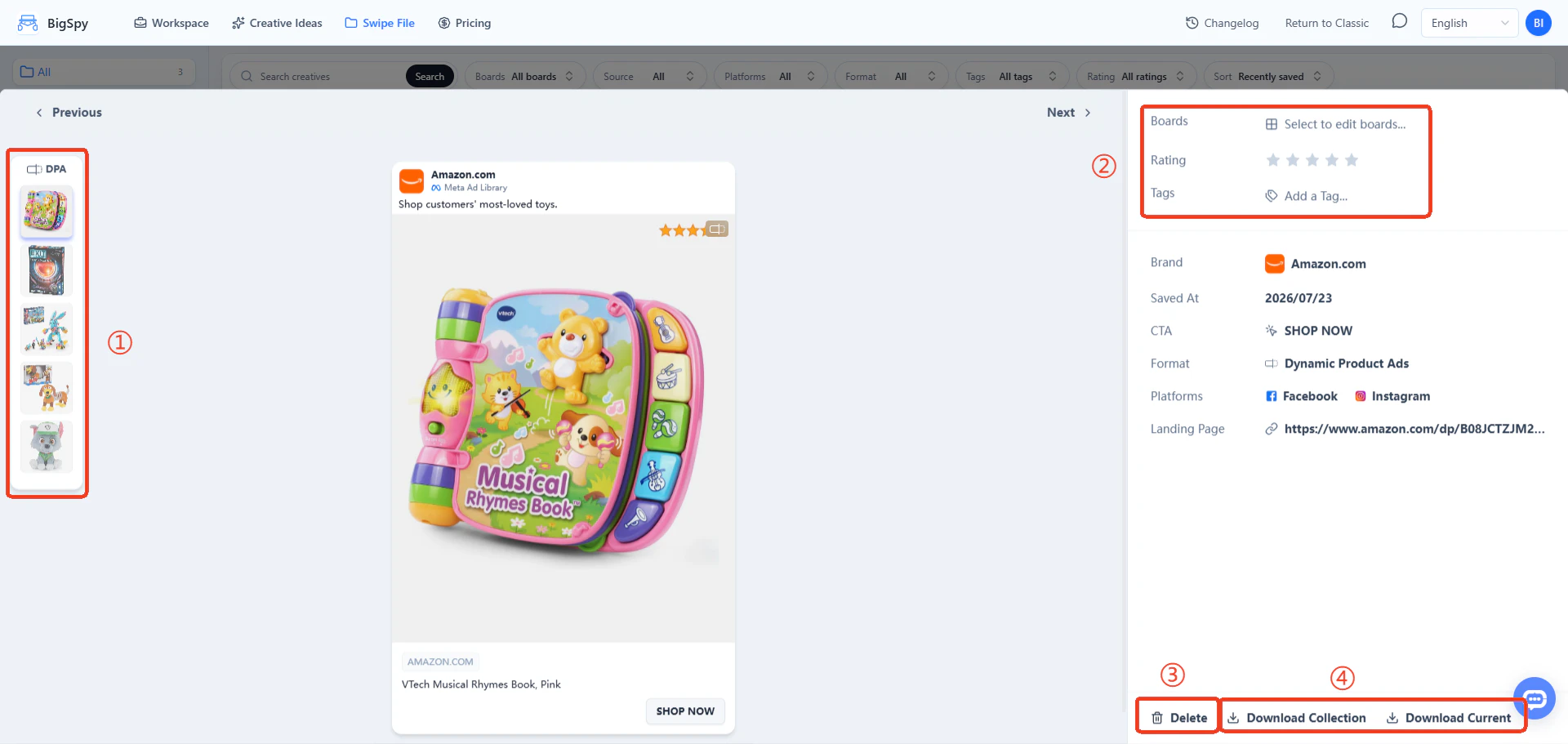
- 1
Ad versions: All versions of a dynamic ad appear here. Select a version to view its details.
- 2
Edit details: Change the creative's board or tags, or assign a rating.
- 3
Delete: Select this button to delete the creative.
- 4
Download: Download the creative assets. For carousel and dynamic ads, you can download only the asset currently displayed or download all assets.