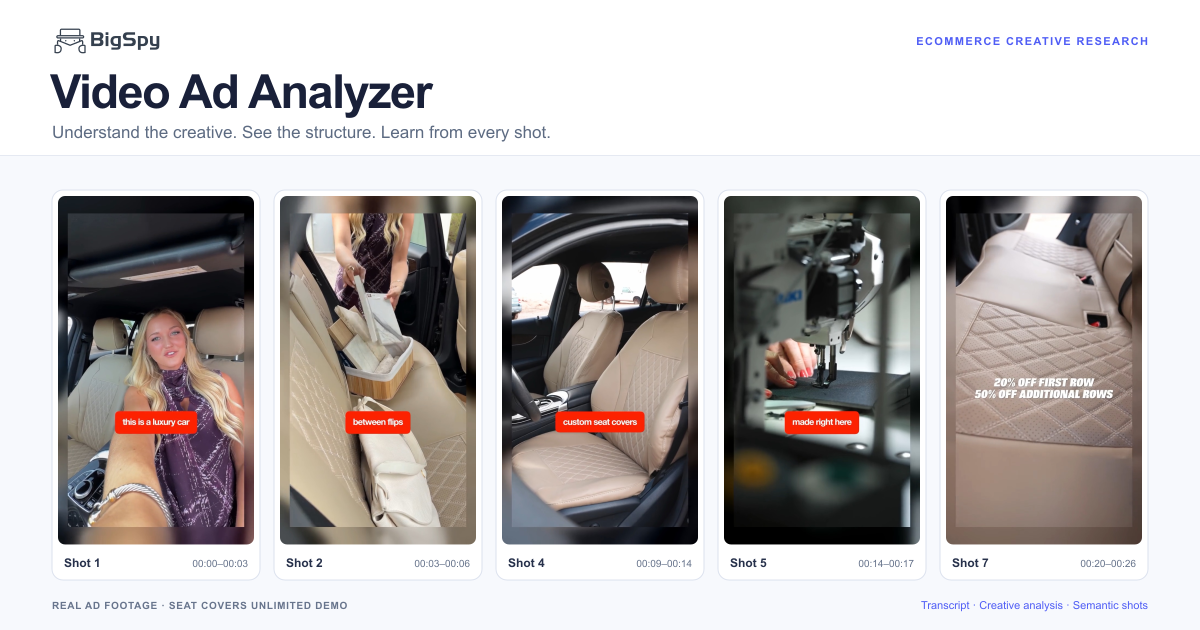

Before you begin, explore BigSpy Video Analysis.
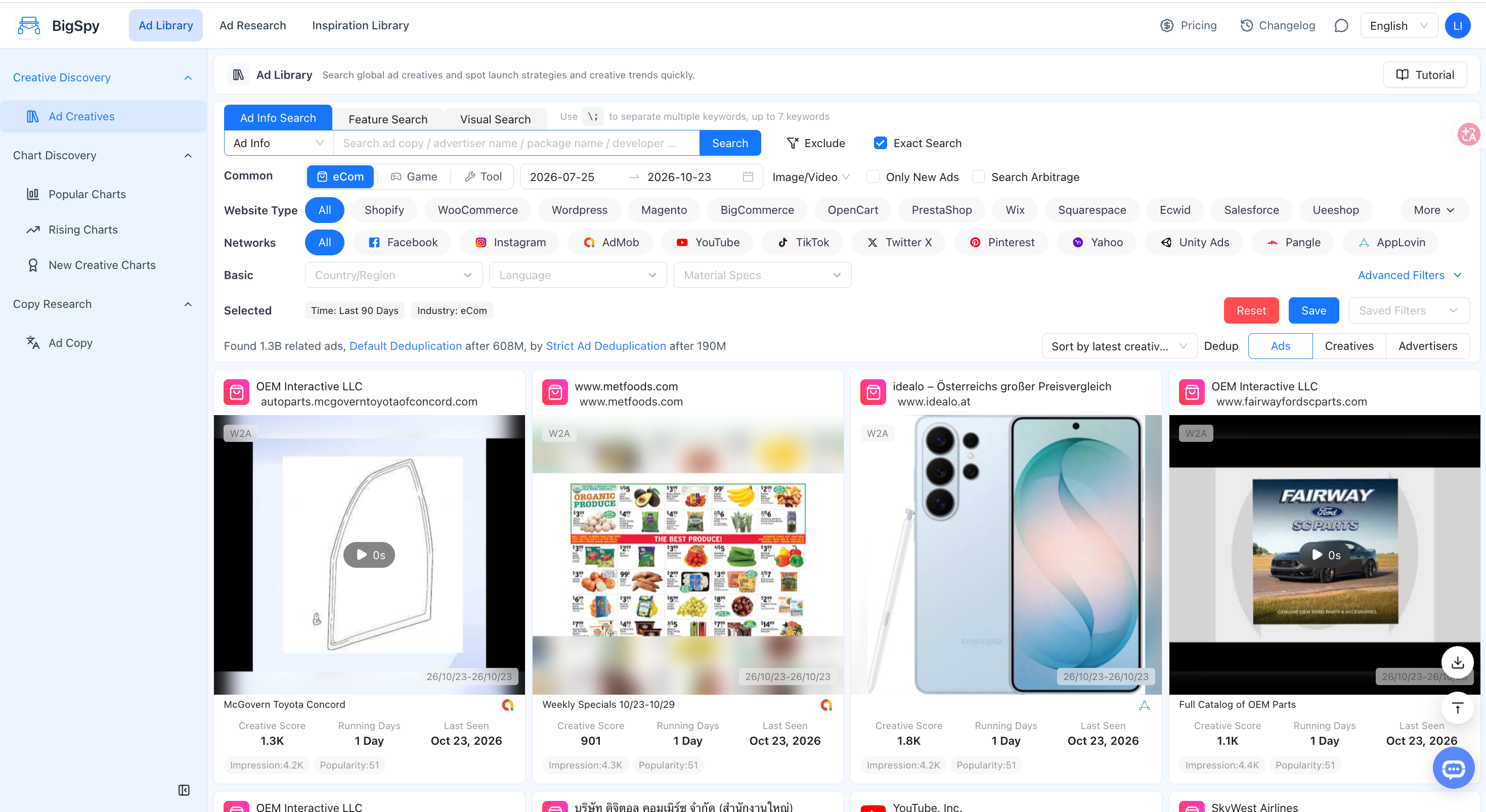
1. Select the ecommerce industry
Open Ad Library → Ad Creatives and select eCom in the industry options. Then find the video creative you want to analyze.
2. Open Creative Details and start an analysis
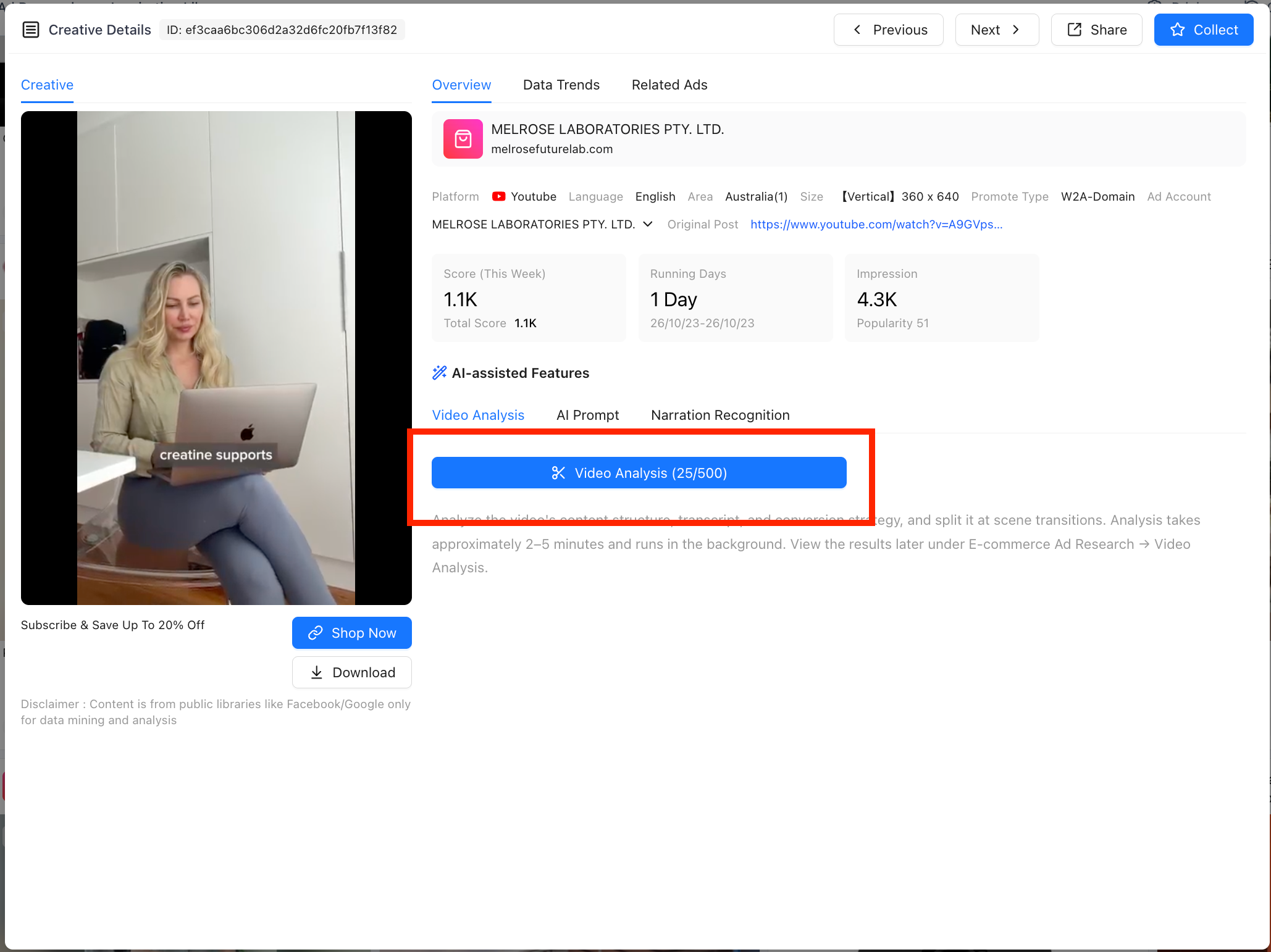
- Click a video creative to open Creative Details.
- Under AI-assisted Features, select Video Analysis.
- Click the blue Video Analysis button to start.
Analysis runs in the background. You can continue browsing creatives and check progress later in the Video Analysis list.
3. Open the Video Analysis list
Open the Ad Research menu at the top of the page. Under E-commerce Ad Research, select Video Analysis to view your analysis tasks.
Path: Ad Research → E-commerce Ad Research → Video Analysis.

4. Check the status or regenerate results
The list shows the status of each analysis. Depending on its status, wait for processing, open the report, or regenerate the results.
| Status or situation | What to do | Usage allowance |
|---|---|---|
| In progress | Please wait and check the status again later. | There is no need to submit the same task again while it is processing. |
| Completed | Click the document icon on the right to open the report. | You do not need to regenerate an existing report to view it. |
| Failed | Click the circular arrow icon on the right to retry the analysis. | Failed analyses do not count toward your allowance. A successful retry counts as a normal analysis. |
| Completed, but you are not satisfied with the result | Click the circular arrow icon to regenerate the report. | Regenerating a successfully completed report uses your allowance. |
Usage reminder: Failed analyses do not count toward your allowance. Regenerating a successfully completed report uses your allowance. Check the current status before regenerating.
If the same creative fails after several retries, AI analysis limitations may be preventing it from being processed at this time. Try a different video creative instead.
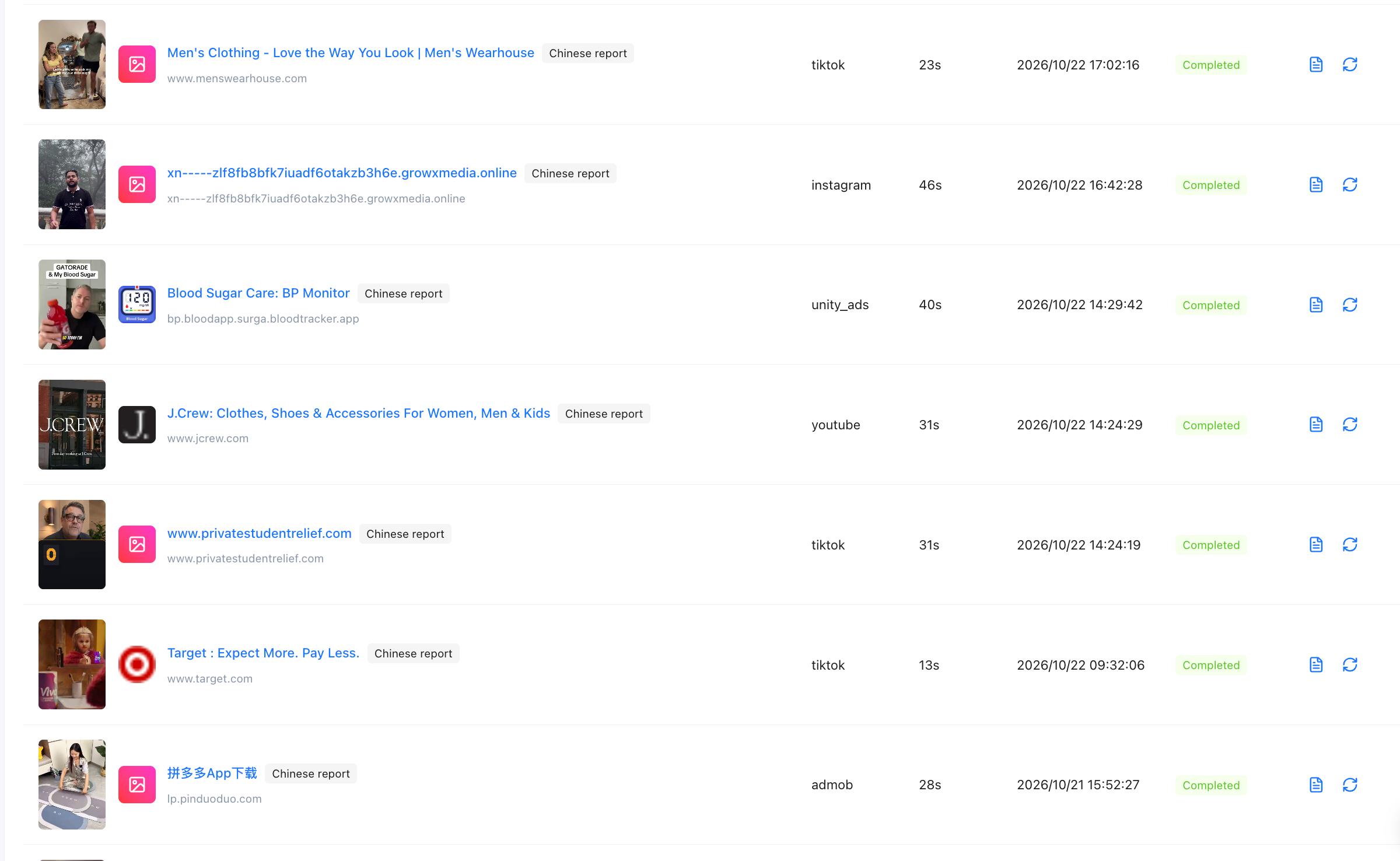
The document icon on the right opens the report. The circular arrow icon regenerates the analysis.
5. Review, copy or export the report
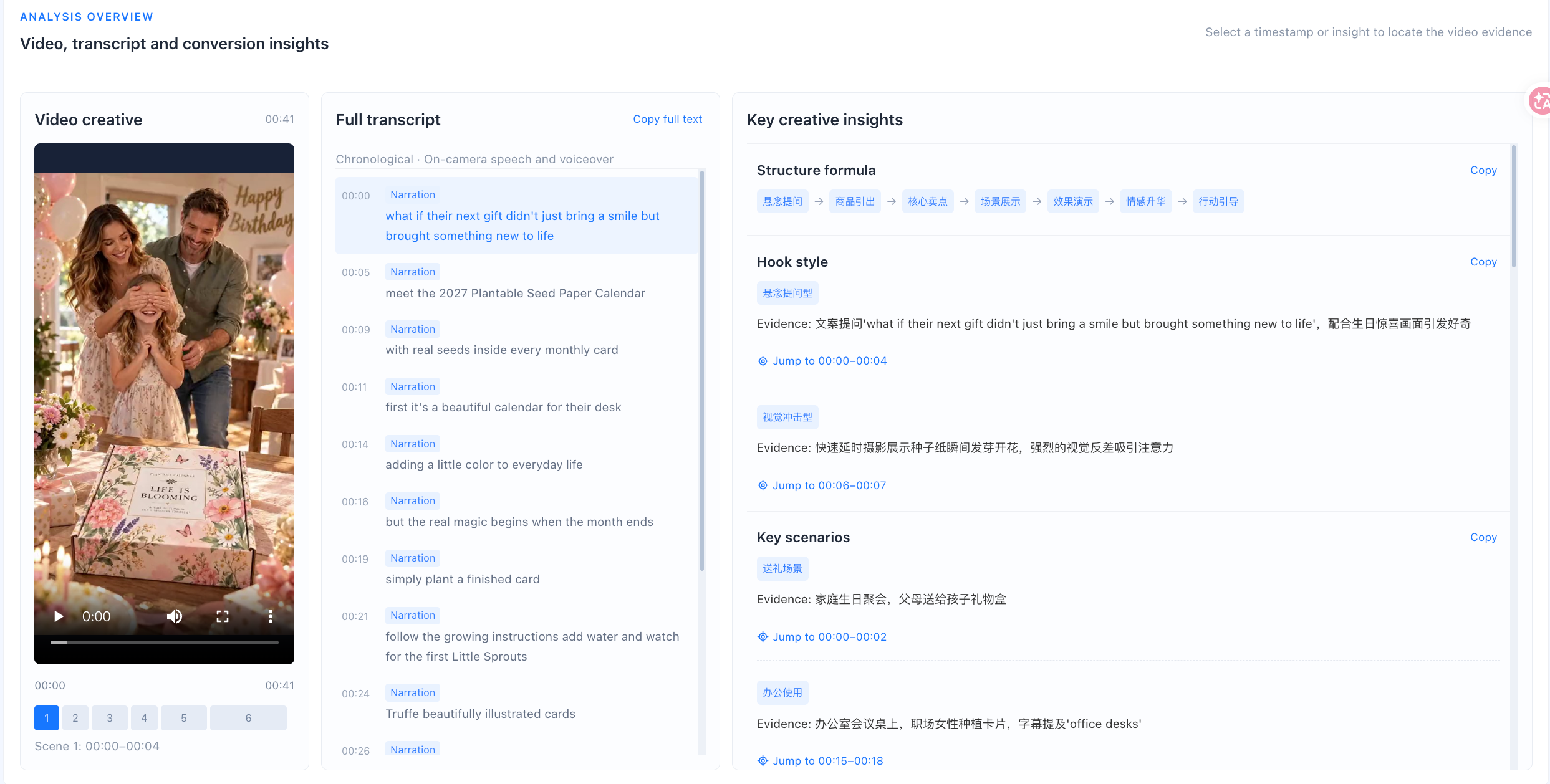
Once the analysis is complete, open the report to review the video structure, on-camera speech and voiceover, and storyboard analysis alongside the original video.
Review the structure and transcript
The upper section of the report shows the video, a chronological transcript, and key creative insights. Read the report alongside the video to understand how its content is organized and presented.
Click Copy full text to copy the transcript. To copy a specific insight, click Copy next to that section.
Explore the storyboard
Scroll down to the storyboard to review each video clip, time range, visual description, key visual details, audience psychology / conversion role, and interaction elements.
To download the full analysis report, use the report page's download option. To save the storyboard separately, click Export storyboard.
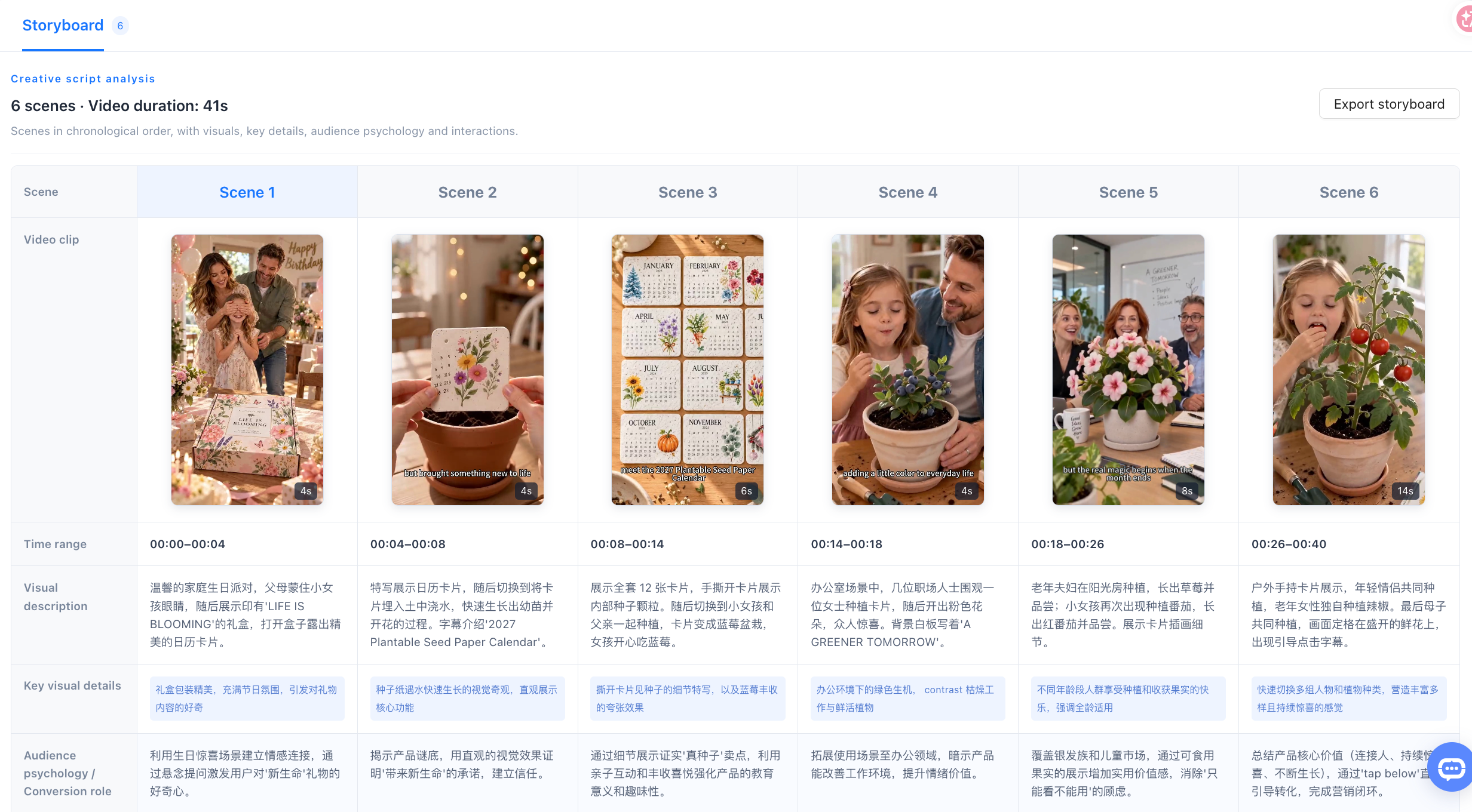
Video duration, the number of scenes, and the information identified will vary by creative. Refer to the report generated for your video.
Frequently asked questions
Do I need to keep Creative Details open while the analysis runs?
No. Analysis runs in the background. Check its status later under Ad Research → E-commerce Ad Research → Video Analysis.
Does a failed analysis count toward my allowance?
No. You can retry a failed analysis. If the retry succeeds, it counts as a normal analysis. If the same creative keeps failing, try a different video.
Can I regenerate a completed report?
Yes. If you are not satisfied with the result, you can regenerate it, but this uses your allowance.